
Rule Inheritance
Apply merchandising rules created at a parent category level to all subcategories automatically.
Overview
The Rule Inheritance feature lets you (merchandiser) automatically apply promotion rules set at the parent category level to all its subcategories.
With this feature, the Rules for a primary category apply to all its smaller categories. This saves time and ensures a consistent shopping experience everywhere.
For example, If you enable inheritance for a Boost rule (Boost brand = Nike) at the Men (Level 1) category:
- The same rule automatically applies to Shoes (Level 2) and Sneakers (Level 3).
- If you later create a separate Pin Rule for Sneakers (Level 3), this new pinning rule will only replace the inherited boost rule for that level.
This ensures that global rules stay consistent while still allowing flexibility at individual category levels.
Benefits of Rule Inheritance
- Saves time by reducing manual rule creation.
- Ensures consistent promotional experiences across categories.
- Gives flexibility to override rules at any level.
- Simplifies campaign management across large catalogs.
Important Points to Remember
- Rules created at a parent category (Level 1) automatically apply to all its child categories (Level 2–Level 7).
- When inheritance is enabled, all subcategories inherit the same rule until a child category has its own rule, which means if a child category has an independent rule, it overrides the inherited rule from the parent at that specific level.
- Attribute-level operations such as boost, sort, and filter are automatically inherited since they are non-positional.
- Positional operations such as pin and slot inherit only if the pinned products exist in the child category.
Set up Rule Inheritance
Follow these steps to enable rule inheritance in the Browse section:
-
Navigate to the Browse Merchandising Dashboard.
-
Click Merchandising > Browse > Promotions.
-
Click Add rule promotion and set Set rule conditions. Click to select the category path. The category path screen appears. The options available here are:
Pick a path
Select from preset category paths already configured in your system. You view a list of categories with their hit counts. Select one from the list (like "Offers" which has 490595 hits).
Build a path
Create a custom category path by selecting specific fields.
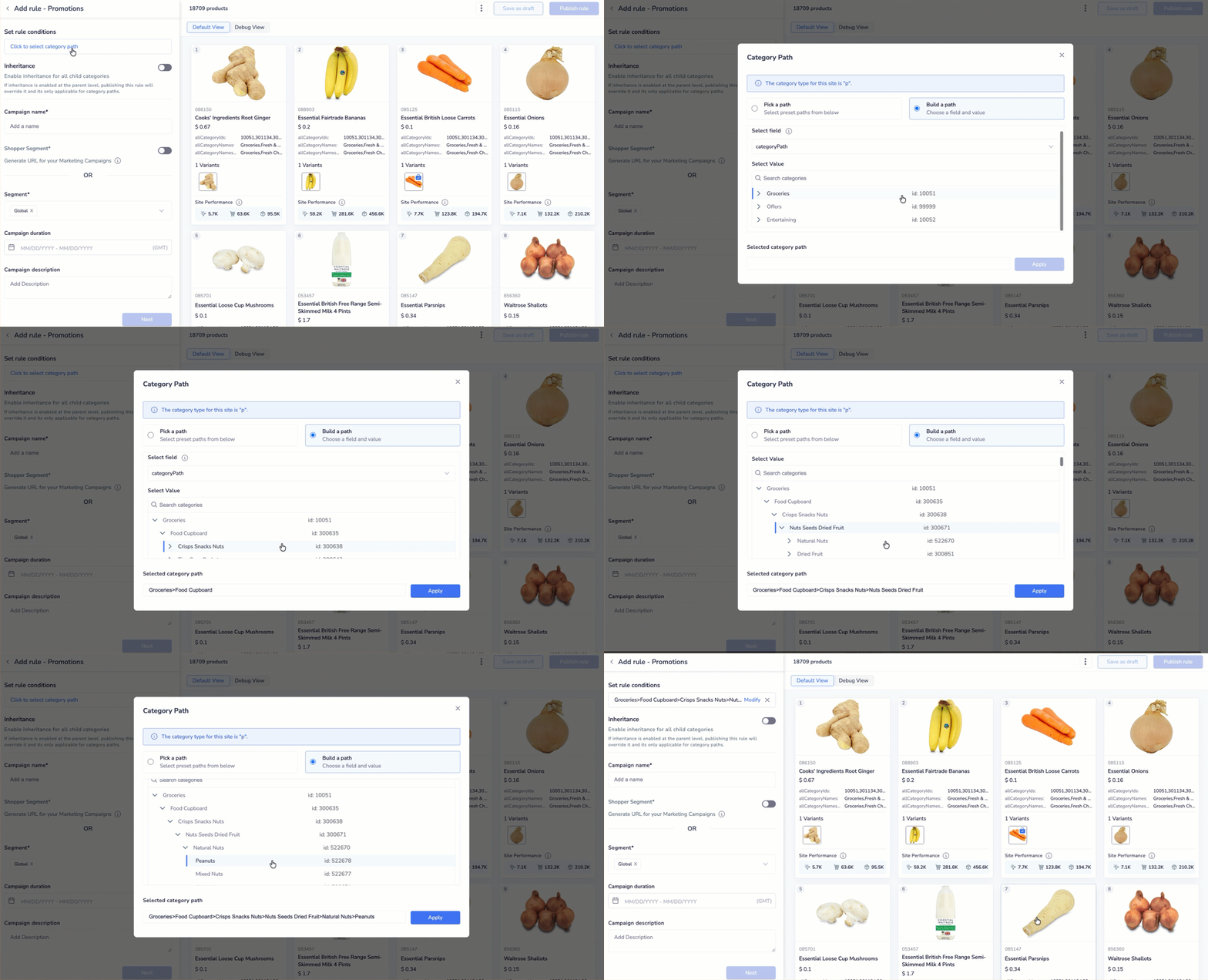
Build a Path with Desired Field & Values
Example: If you want to target a specific product category like Peanuts, you would drill down through multiple levels: start with the top-level category "Groceries" (id: 10051), then select "Food Cupboard" (id: 300635), followed by "Crisps Snacks Nuts" (id: 300638), then "Nuts Seeds Dried Fruit" (id: 300671), then "Natural Nuts" (id: 522670), and finally "Peanuts" (id: 522678).
This builds the complete path: Groceries>Food Cupboard>Crisps Snacks Nuts>Nuts Seeds Dried Fruit>Natural Nuts>Peanuts. This method gives you control over targeting specific subcategories within your catalogue.
Once done, click Apply.
-
Turn the Enable inheritance for all child categories toggle ON.
Important Point to Remember
If inheritance is enabled at the parent level, publishing this rule will override it and its only applicable for category paths.
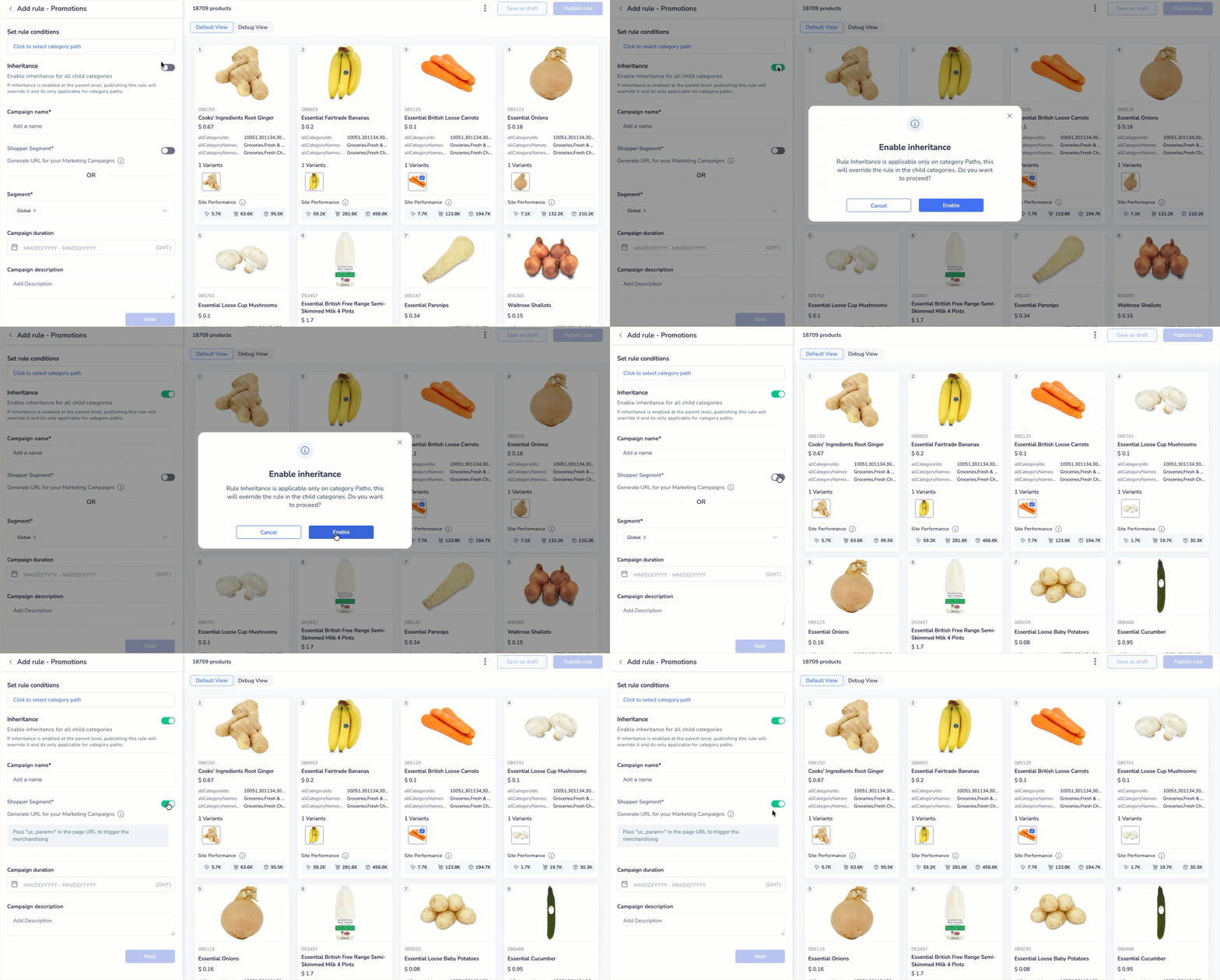
Enable Inheritance and Set Rule Conditions
Refer to the table below to see the other fields available here.
| Field | Description |
|---|---|
| Campaign name | A unique name to identify your promotion. |
| Shopper Segment | Toggle this ON to create a special URL for marketing campaigns. The promotion will only activate when customers visit through that specific URL with custom parameters. |
| Segment | Define which customer group views this promotion. "Global" means everyone. You can also select specific customer segments like "VIP members," "First-time buyers," if they're configured in your system. |
| Campaign duration | Define the start and end date/time for your promotion. You can set specific hours (like 12:00 am to 11:59 pm) and select your timezone. This ensures the promotion automatically starts and stops at the right time. Run Perpetually: When you check this box, the campaign will run indefinitely without an end date or time. |
| Campaign description | A brief about what this promotion does or why it was created. |
- Once you are done, click Next. The options available on this screen are as follows:
| Option | Sub-option | Description |
|---|---|---|
| Landing page | Toggle this ON to create custom search results for specific queries. Control exactly which products appear and in what order when customers browse this category. | |
| Add collection list (optional) | Link a pre-made collection of products to this landing page. | |
| A/B testing | Toggle this ON to test two different merchandising strategies simultaneously. For example, 50% see Variation A, 50% see Variation B, to determine which performs better. | |
| Test Configuration - Variation A & B | The two different merchandising strategies you're testing. Each variation gets a traffic percentage (must total 100%). For example, 50% of visitors see Variation A while 50% see Variation B. | |
| Winner is decided by | The metric used to determine which variation performs better. Options include: Click Rate, Average Order Value, Revenue Per Visit, Conversion Rate, Cart Rate | |
| Test Duration | Define how long the A/B test runs before determining a winner. Set in days, hours, and minutes. Recommended: 7 days for statistical significance and reliable results. | |
| Preferred option in case there is no winner after the test | Define which variation to use if the results are inconclusive. Select either Variation A or Variation B as the default. |
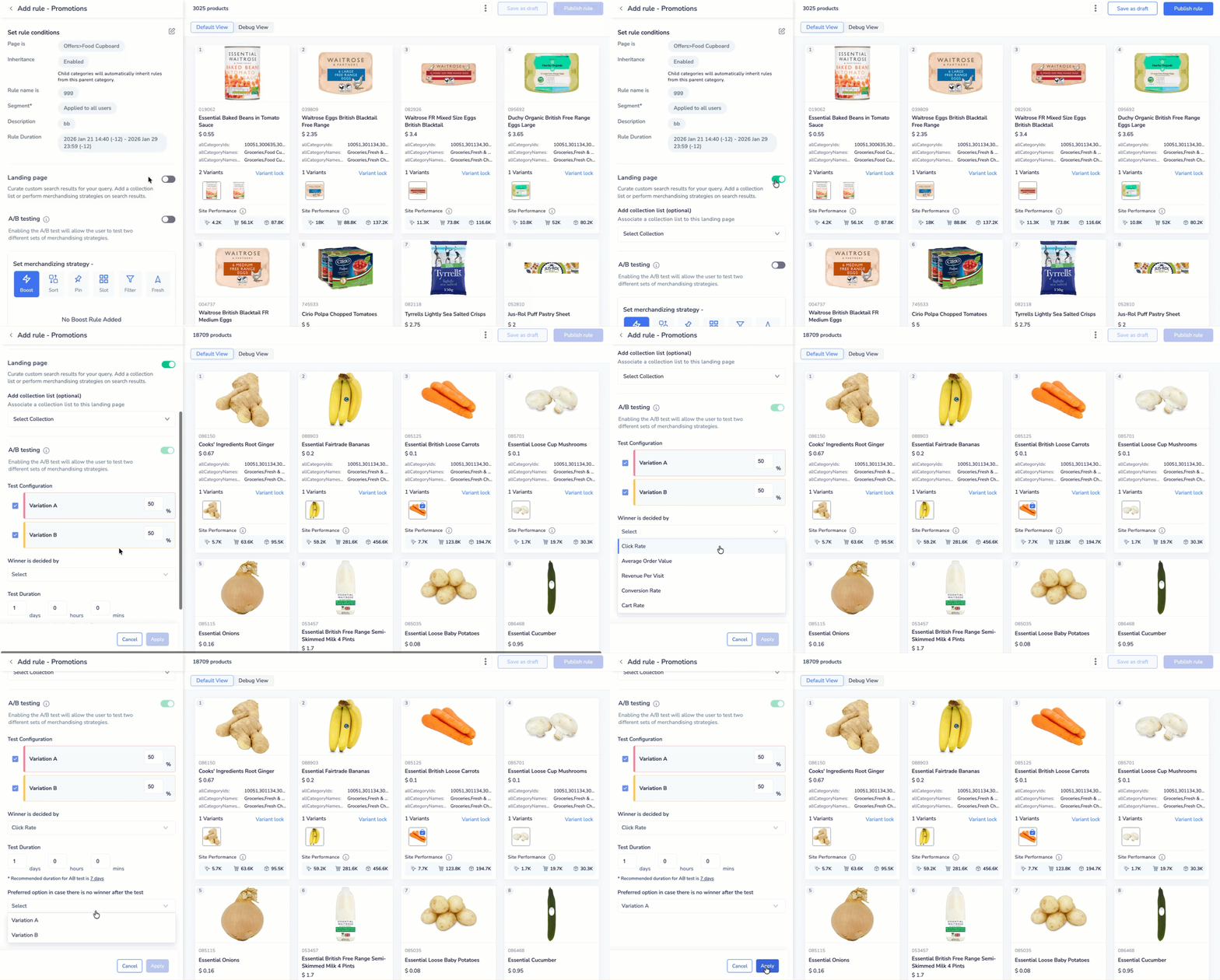
Test Configuration with A/B Testing
Design your merchandising strategy
With Query-specific rules, you can create rules using one or a combination of these options:
- Boost/Bury: Increase or decrease product visibility.
- Sort: Arrange products based on specific criteria.
- Pin: Fix key products at any exact position from 1 to 50.
- Slot: Assign multiple products to predefined positions in a single go.
- Filter: Exclude or include products from a superset.
- Fill in these details, then click Publish Rule to activate it across the selected category and its child categories.
Rule Types and Inheritance Behaviour
Rule inheritance applies differently based on the type of merchandising rule you create. When you enable inheritance for a category path, all child categories automatically inherit applicable rules. This depends on whether the rule operates at an attribute level or a product level. Refer to the given table below for Rule Type vs Inheritance Behaviour:
| Rule Type | Level | Inheritance Behaviour | Example | Notes |
|---|---|---|---|---|
| Boost | Attribute-level | Automatically inherited by all child categories | Boost brand = Nike | Based on category attributes such as brand, color, or price. Applies consistently across all levels. |
| Sort | Attribute-level | Automatically inherited by all child categories | Sort by price descending | Attribute-based, so rules remain consistent across catalog levels. |
| Filter | Attribute-level / Facet-level | Inherited if category-based Not inherited if non-category-based | Filter brand = Nike or Filter discount > 20% | Category-based filters (e.g., brand, color) are inherited. Custom feed filters (e.g., sale promotion) do not. |
| Pin | Product-level | Inherited only if the pinned product exists in the child category | Pin Product ID 123 at position 1 | If the product is missing in the child category, inheritance will not apply. |
| Slot | Product-level | Inherited only if all slotted products exist in the child category | Slot Product IDs 123, 456, 789 in positions 1–3 | If any product is unavailable in a child category, the slotting rule skips that level. |
| Custom Feed Attributes | Non-category-based | Not inherited | Filter = Sale Promotion | These are not linked to category hierarchy and must be set individually for each level. |
| Facet / Field Rules | Query-based | Conditionally inherited based on data match | Filter brand = Nike (applied on category “Shoes”) | Field rule applies only if ≥80% of products under the category match the attribute condition. |
Examples
Refer to the table to learn how rule inheritance behaves across different category levels Level 1(L1) > Level 2(L2) > Level 3(L3)
| Scenario | Description | Outcome |
|---|---|---|
| Parent Rule Applied | A rule is created at L1 (no child rules). | The rule automatically applies to L1, L2, and L3. |
| Mid-level Rule Applied | A rule is created at L2. | The rule applies to L2 and its children L3. |
| Parent Rule + Child Override | L1 = Boost Nike; L2 = Pin Product 123. | Boost applies to L1 & L3. L2’s Pin rule overrides the inherited boost. |
| Post-Inheritance Override | Initially, L1 boost applies to all. Later, a new pin rule is created at L2. | Once published, the L2 pin overrides the inherited boost at that level. |
| Pinning Behavior (Product Exists in All) | L1 pin = Pink Shirt at position 3; the product exists in L1, L2, L3. | The pin rule applies to all levels (L1–L3). |
| Pinning Behavior (Product Missing in Child) | L1 pin = Blue Skirt, but the product missing in L2. | The pin rule applies only to L1 and L3. |
| Slotting (All Products Present) | L1 slot = Pink Shirt, Blue Shirt, Red Shoes in positions 1–3. | The slotting rule applies to all levels. |
| Slotting (Product Mismatch) | L1 slot = 3 products; some are missing in child categories. | Inheritance applies only at the parent level (L1). |
| Attribute-Based Rules | L1 = boost/filter/sort by brand=Nike. | Attribute rules apply automatically to all levels. |
Updated 8 months ago