
Shopping Agent
Learn to configure Shopping Agent that helps guide your website visitors through their shopping journey.
Overview
The Shopping Agent helps you create a conversational shopping experience on your website or app. It allows you to:
- Greet users with a custom welcome message.
- Suggest starting questions to guide conversations.
- Control the agent's tone and response length.
- Train the agents using your own business documents
The goal is to help shoppers discover products faster, get relevant answers instantly, and move confidently towards purchase.
Common Use Cases
Refer to the table below to explore common use cases and see how the Shopping Agent can solve your business challenges.
| Use Case | Problem | How Shopping Agent Helps | Expected Outcome |
|---|---|---|---|
| Reducing Cart Abandonment | Shoppers leave without purchasing because they can't find size information quickly. | Configure cold start questions like "Need help with sizing?" and upload a sizing guide PDF to the Knowledge Base. The Agent proactively offers sizing help. | Fewer abandoned carts, higher conversion rates. |
| Improving Product Discovery | Customers struggle to navigate a large catalog and miss relevant products. | Use cold start questions like "What are you shopping for today?" and set response length to Medium so the Agent can ask clarifying questions and recommend products. | Increased average order value, better customer satisfaction. |
| Handling Common Questions | Your support team spends hours answering the same questions about shipping and returns. | Upload your FAQ document to the Knowledge Base and add cold start questions like "What's your return policy?" The Agent handles these queries instantly. | Reduced support workload, faster customer service. |
Configure Shopping Agent
Follow the steps given below to set up and customise the shopping Agent.
- Log in to your Unbxd dashboard.
- Navigate to Manage in the top menu.
- Select Shopping Agent from the dropdown.
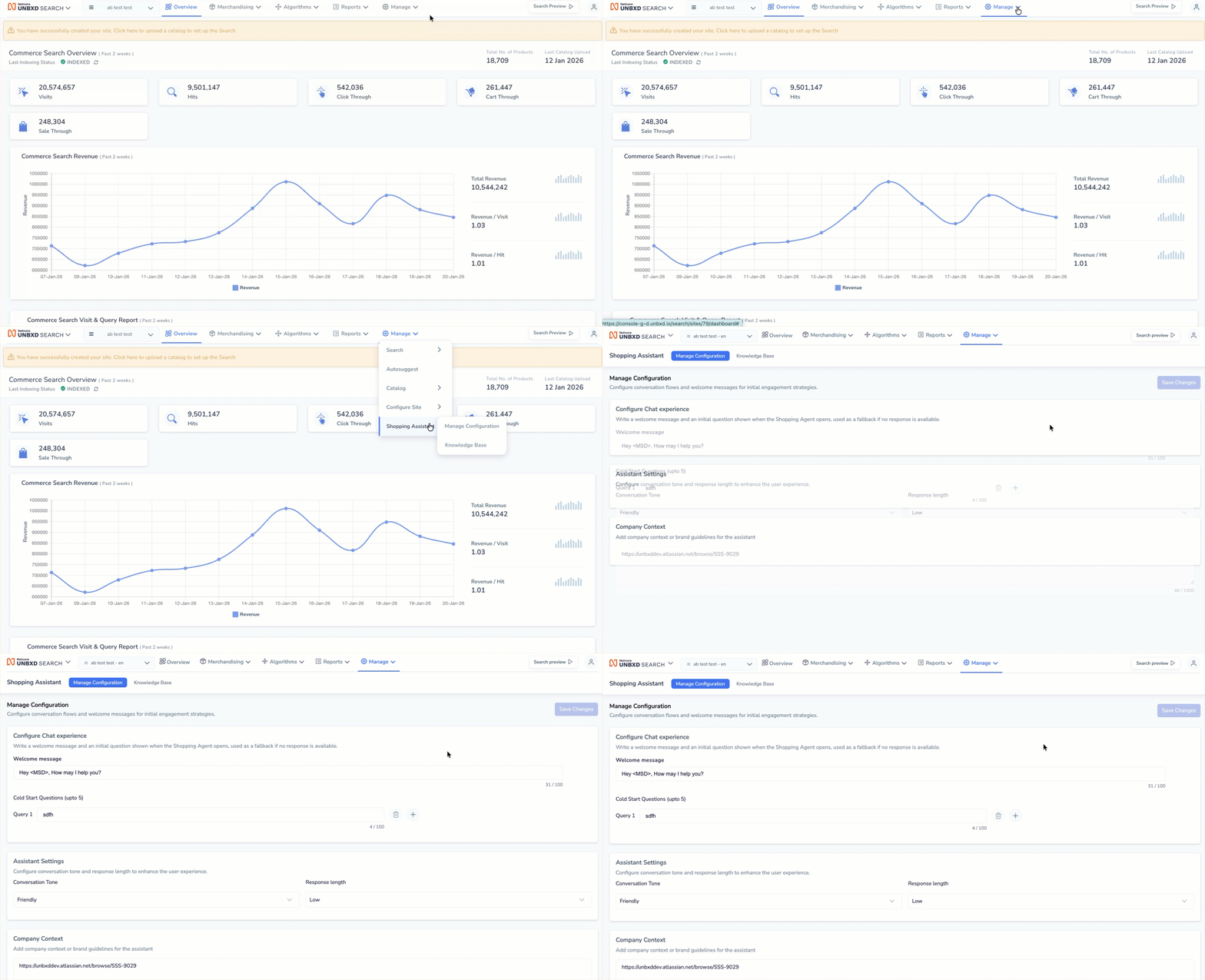
Set up & Customize Shopping Assistant
The two tabs present here are:
- Manage Configuration (setup and customisation)
- Knowledge Base (upload reference materials)
Manage Configuration
This section controls how your Shopping Agent behaves and speaks to users.
Configure Chat Experience
The chat experience determines what shoppers see when they first interact with your Shopping Agent.
- In the Configure Chat experience section, locate the Welcome message field.
- Enter a friendly greeting that introduces the Agent (maximum 100 characters). Example: "Hey there! How may I help you find the perfect product today?"
- Add Cold Start Questions (Up to 5). Cold-start questions are predefined queries that appear when the Agent loads, providing shoppers with easy conversation starters.
- Click the + icon to add a new question.
- Enter a typical question your shoppers might ask. Repeat for up to 5 questions.
- To remove a question, click the delete icon next to it.
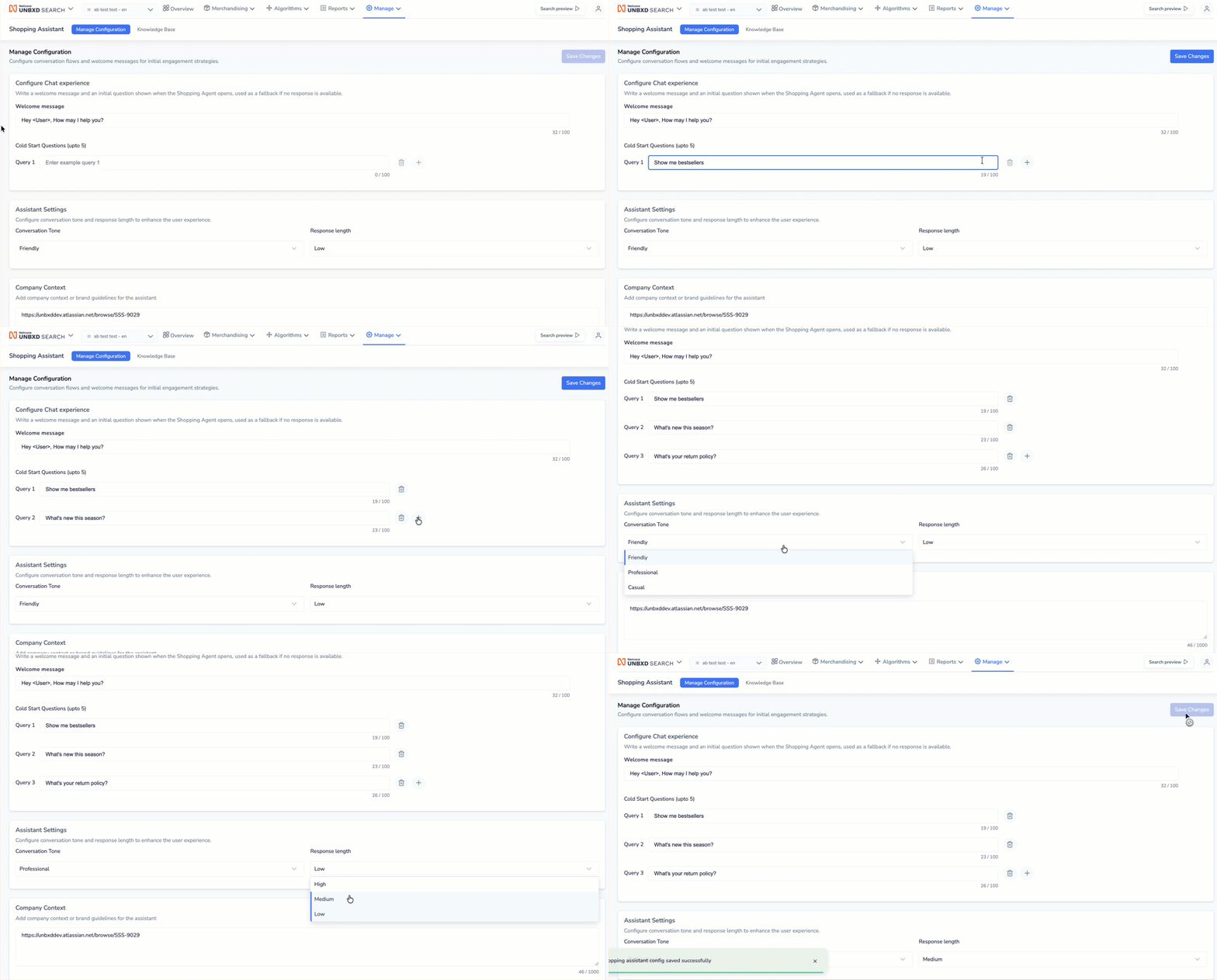
Configure Conversation Flows
Examples of Good Cold Start Questions
- "Show me bestsellers"
- "What's new this season?"
- "Help me find a gift under $50"
- "Do you have sustainable products?"
- "What's your return policy?"
Configure Agent Settings
These settings control how the Agent communicates with your shoppers.
Select Conversation Tone
- Locate the Conversation Tone dropdown
- Select the tone from the dropdown that matches your brand personality:
- Friendly
- Professional
- Casual
- Set Response Length from the dropdown
- Select how detailed you want the Agent's answers to be:
- High: Detailed, comprehensive responses with explanations.
- Medium: Balanced responses.
- Low: Brief, to-the-point answers
Add Company Context
This section allows you to provide brand-specific information that guides how the agent responds. Enter up to 1,000 characters of brand guidelines, tone instructions, or key information
Once you've completed all fields, click the Save Changes button (top-right corner). Your Shopping Agent is now configured and ready to use
Knowledge Base
The Knowledge Base allows you to upload reference materials (PDFs) that the agent uses to answer customer questions more accurately.
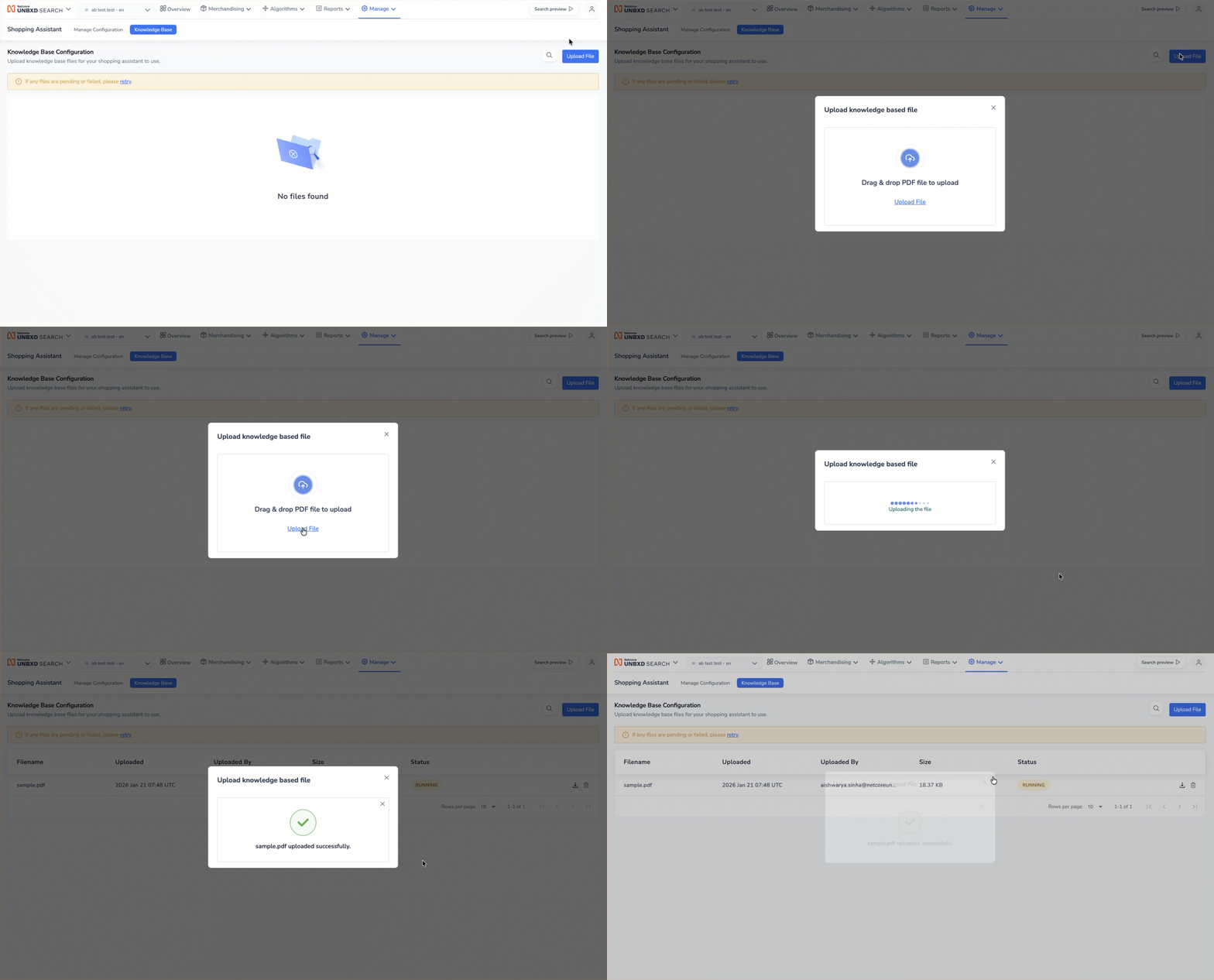
Upload Knowledge Base Reference Material
Follow the steps given below to upload the knowledge base file:
- Click the Upload File button (top-right).
- A modal window will appear titled "Upload knowledge based file".
- Option 1: Drag and drop your PDF file into the upload area.
- Option 2: Click the Upload File link to browse and select a file from your computer.
File Requirements
- Format: PDF only
- Once you upload a PDF file to the Knowledge Base, view it on the listing page. Refer to the given table to know the fields available here:
| Field | Description |
|---|---|
| Filename | The name of the uploaded PDF file. |
| Uploaded | The date and time when the file was uploaded to the system. |
| Uploaded By | The email address of the user who uploaded the file. |
| Size | The file size of the uploaded PDF. |
| Status | The current processing status of the uploaded file. |
Shopping Agent: AI Mode Experience
To support conversation-first shopping, the Shopping Agent now includes an AI Mode experience. This update introduces a dedicated, immersive interface designed specifically for discovery-led conversations, rather than treating the assistant as a secondary widget.
AI Mode elevates the Shopping Agent from a supporting feature to a primary interaction surface.
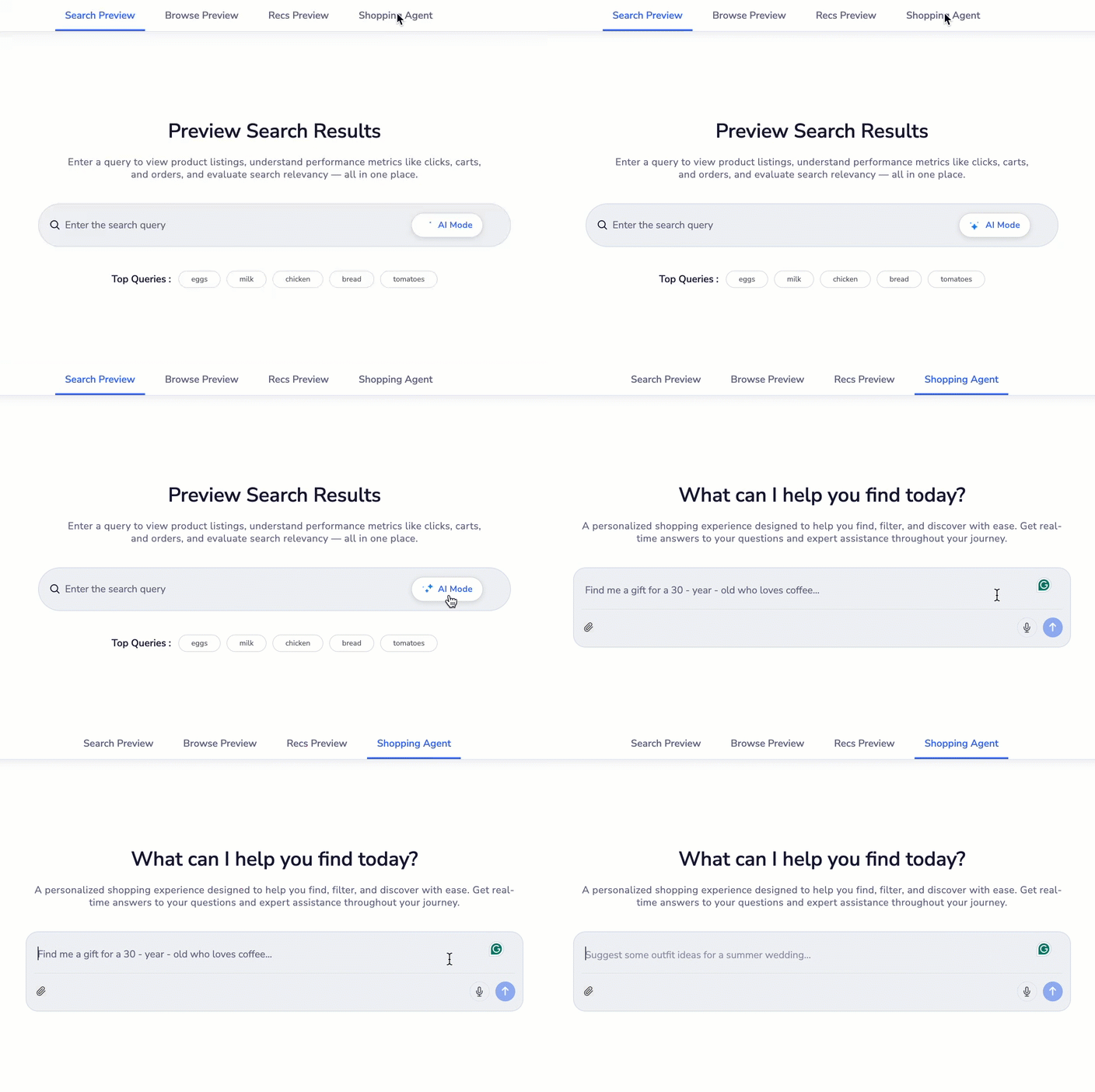
AI Mode in Shopping Agent
Updated 2 months ago