
Site Cloning
Netcore Unbxd Site Cloning | Clone Merchandising and Search Configuration Easily
Overview
Site Cloning lets you copy merchandising and search configuration rules from one site (the source) to one or more other sites (the targets).
This helps reduce manual work and ensures consistent configurations across environments like dev, staging, production, or different languages/regions.
You can use this feature in several scenarios:
- New Site Onboarding: Set up production sites by copying rules from your dev/staging environment.
- Go-Live Updates: Push new rules to live sites after testing.
- Multi-Region/Lang Setup: Apply a base configuration to 20–30 regional or language-based storefronts.
With Site Cloning, you can:
- Clone entire sets of rules from one site to multiple others
- Choose which types of rules to copy (e.g., Promotions, Facets)
- Select between Overwrite and Incremental copy modes
- View the history and status of all cloning operations
You can copy rules under the following categories:
| Merchandising & Search | Search Configuration |
|---|---|
|
|
NOTE
You can select features, but not individual rules within a feature.
Log in to your Netcore Unbxd panel, then navigate to Manage > Site Cloning. You will land on the Site Cloning Overview page.
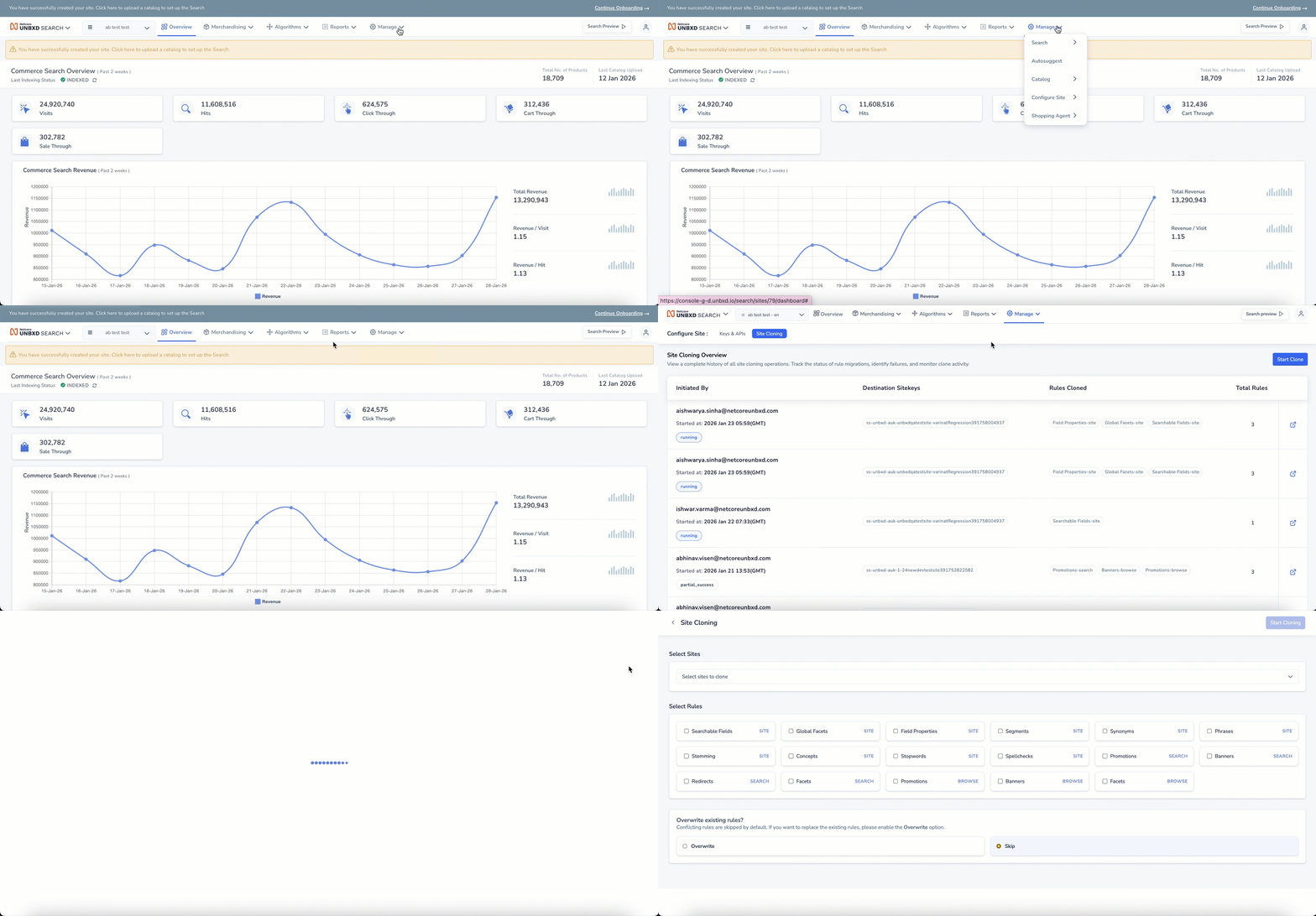
Site Cloning
This page lists all past and ongoing cloning operations.
| Column | Description |
|---|---|
| Initiated By | The email address of the user who started the clone |
| Started At | Date and time the clone was initiated |
| Destination Sitekeys | One or more site keys where rules are being copied |
| Rules Cloned | List of rule types that were cloned (e.g., Promotions-search, Facets-browse) |
| Total Rules | Number of rules successfully cloned |
| Status | Current status of the operation:
|
Click the link icon at the end of each row to view detailed logs or reports for that operation.
Create Clone
To clone rules from one site to another, follow the steps below:
-
Click the Start Clone button in the top-right corner.
-
In the form that appears:
- Select the Source Site
- Choose one or more Target Sites
- Pick the rule types you want to copy (e.g., Promotions, Facets)
- Choose the Copy Mode: Overwrite or Incremental. When cloning rules, choose how to handle existing rules on the target site:
Copy Mode Description When to Use Overwrite Replaces all existing rules in the selected feature(s) on the target site New site onboarding, clean setup Incremental Only adds new rules; does not change or delete existing ones Go-live updates, safe syncing -
Confirm your selections and click Start
-
Once triggered:
- The cloning operation begins immediately
- You can track its progress in the overview table
- Email notifications will be sent upon completion (per rule type)
Known Limitations
- You can’t select individual rules within a rule type, cloning applies to the entire rule category
- Deleted rules in the source site are not removed from the target
- Cross-tenant cloning and scheduled/automated cloning are not supported
- Only admin users can perform site cloning
Updated 4 months ago