
Product Card Mapping
Linking specific product attributes to how they appear visually on the product listing or search results page.
Overview
The Product Card Mapping feature allows you to configure how your product data appears on product cards across the platform. You can map specific attributes from your catalog feed to build, preview, and enhance a compelling product card experience, including visual product badges.
Product cards created using this mapping are reflected across Search Preview and Browse Preview, helping you understand how products appear to shoppers in real time.
Create Product Card
- Navigate to Manage > Catalog > Product Card Mapping. The Product Card Preview screen appears.
- Select the attribute for Product Title from your catalog such as
title. - Select the attribute for the Price of the Product from the dropdown that holds the product’s price data, such as
price. - Select the attribute for Product Image to map your image URL field. This is used to fetch and display the product image in the product card.
- “Add prefix” if your image URLs need a base path such as,
https://cdn.mysite.com/). This is an optional field.
A real-time Product Card Preview appears in the centre of the screen. This preview updates as you configure the mappings and helps ensure that the selected attributes are displayed as expected.
Below is the reference of how attribute mapping will look like:
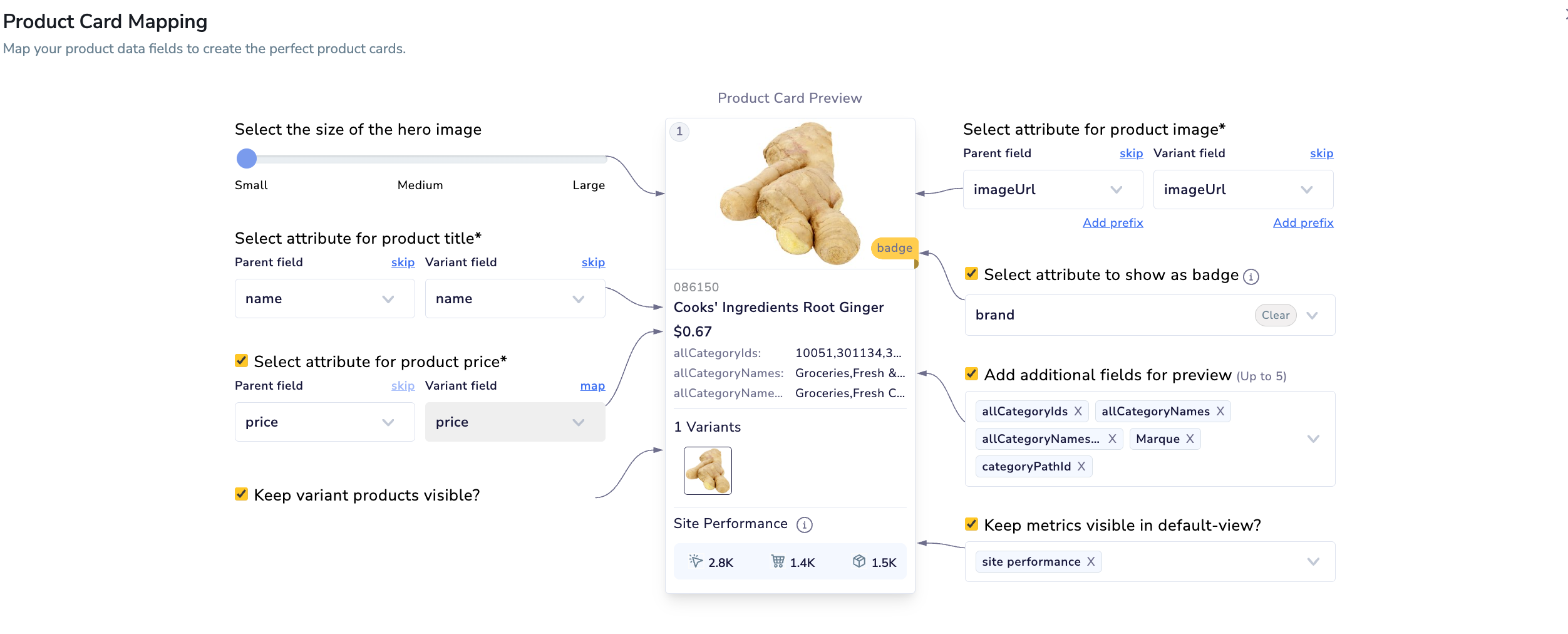
Product Card Preview
Why use Product Card Viewer?
When configured correctly, it allows you to see all the key product details at a glance like how your shoppers would see them on your live site. This includes critical product attributes such as:
- Product Title : The product's name is clearly displayed to help customers identify and understand the product.
- Price : The cost of the product is prominently shown to inform customers about its price.
- Product Image : The link to the product's image ensures a visual representation is displayed on the product card.
- Plus any additional fields that matter to your business, such as Size and delivery date.
These attributes are essential because they directly impact the user's ability to understand the product and purchase.
When Product Mapping is correctly configured, the Search Preview or Browse Preview will display products in a seamless, clear, and compelling way.
Example card includes:
- SKU/ID
- Title
- Price
- Image
- Additional info (e.g., color, brand, category path)
- Add additional fields for preview (Optional). You can add up to 5 additional attributes. These appear under the main title/price in the preview and help visualize more metadata such as:
color,brand,categoryPath1,category,new. Select fields from the dropdown (or remove them using the "x" next to each). - After selecting the required and optional attributes, click the Save Changes button in the top right corner. Your mappings will be saved and used for rendering product cards across the platform.
Tips
- Always preview changes to ensure product cards appear clean and informative.
- Use consistent naming conventions in your catalog feed to simplify mapping.
- Map frequently used fields (e.g., color, size, category) to enhance the preview’s clarity.
Product Badging
Product Badging introduces a visual merchandising layer that allows you to display a selected product attribute as a badge on the product card. Product badges help shoppers quickly identify what’s important about a product, especially in dense result grids. This improves scanability and reduces decision fatigue.
NoteAll changes are reflected in the Product Card Preview in real time.
Set up Product Badging
- Upload the Product IDs in CSV format for which you want to apply product badges.
- Navigate to Website Preview and open Product Card Mapping.
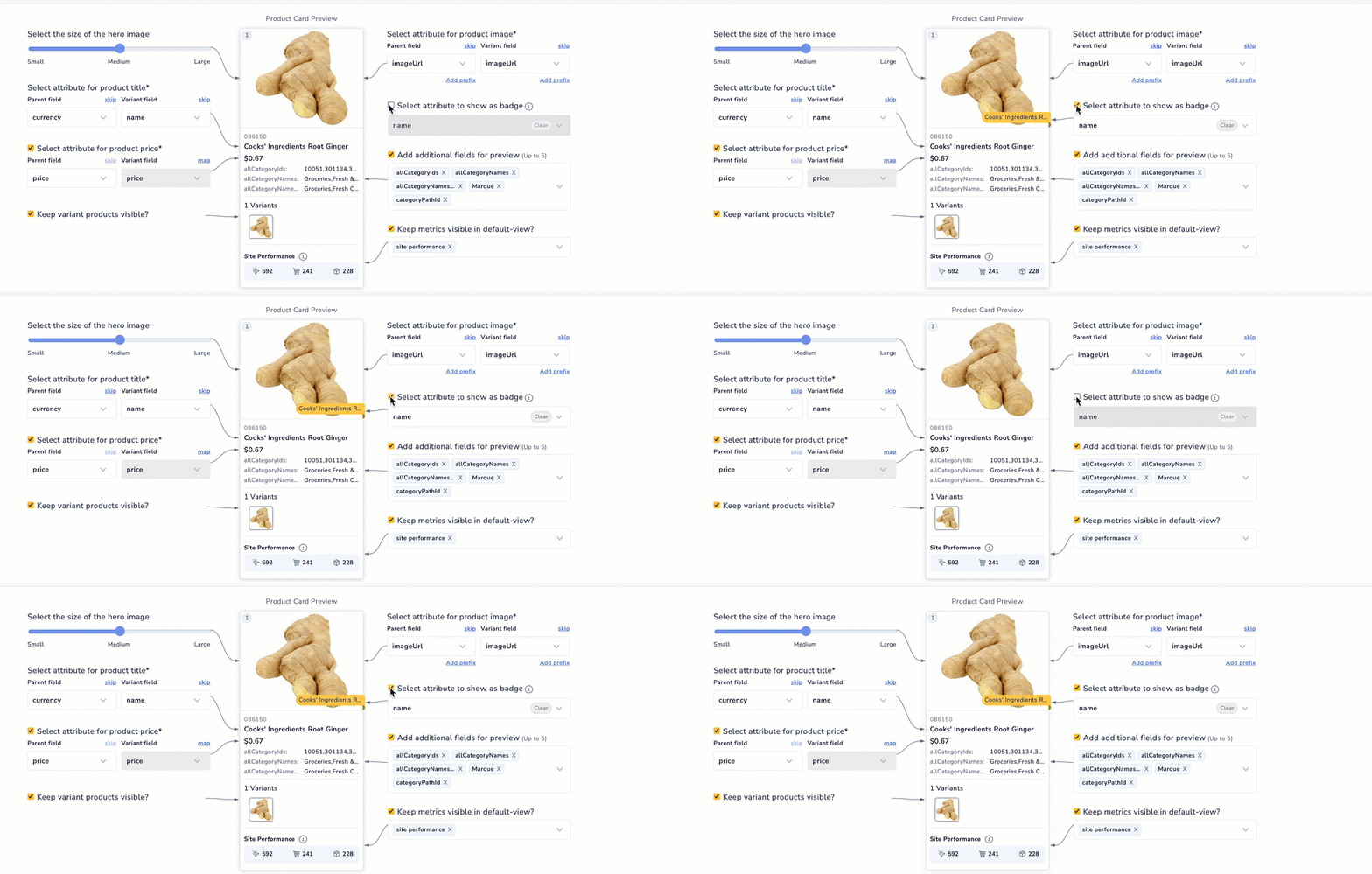
Set up Product Badge
- Enable and select the attribute to show as a badge. Choose the catalog attribute you want to display as a badge (for example, brand, new, or marquee).
- Click Save Changes.
The selected attribute will now appear as a badge on the product card in Search and Browse previews.
FAQs and Troubleshooting
What is the Product Card Viewer used for?
The Product Card Viewer helps merchandisers preview how products will appear to shoppers in Search or Browse Preview. It displays important product attributes like title, price, and image to ensure accurate and compelling product representation.
What are the required attributes for product cards to display properly?
At a minimum, you need to map the following attributes:
- Product Title
- Selling Price
- Image URL
These fields are mandatory for the product card to load correctly.
What happens if an essential attribute is not mapped?
If any of the required attributes (Title, Price, Image) are missing, a notification will appear in the Search/Browse Preview indicating what is missing. The product card may not render correctly without these fields.
Updated 8 months ago