
Interaction History
Track and review every conversation your shoppers have had with the Shopping Agent.
Overview
Interaction History gives you a complete, session-level record of every Shopping Agent conversation on your site. It lets you:
- Browse a list of past sessions with key details like user, page type, duration, and message count.
- Open any session to replay the full back-and-forth between the shopper and the agent.
- Search for a specific conversation or user, and filter sessions to narrow down what you're looking for.
The goal is to help you understand how shoppers are actually using the assistant, spot gaps in its responses, and validate that conversations are steering shoppers toward the right products.
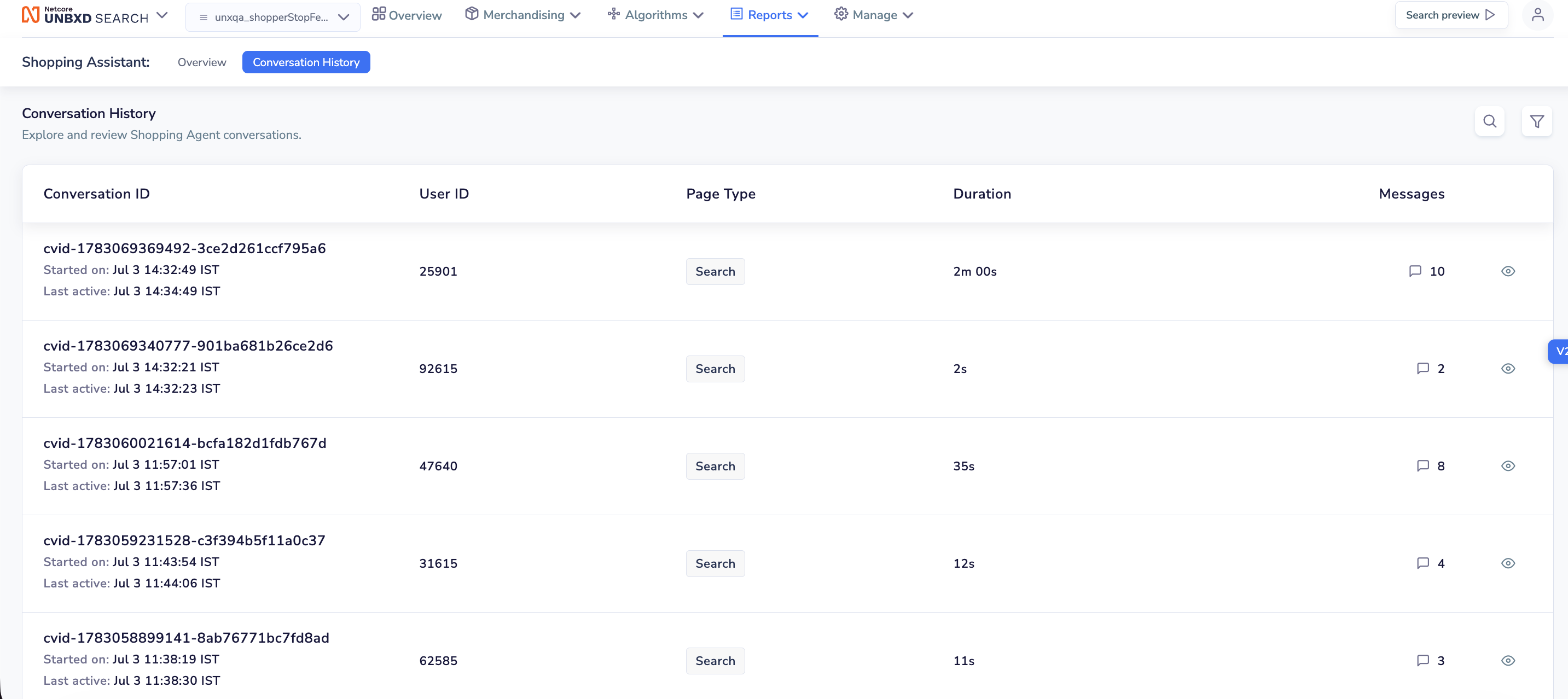
Converstation History for Shopping Agent
Common Use Cases
Refer to the table below to explore common use cases and see how Interaction History can solve your business challenges.
| Use Case | Problem | How Interaction History Helps | Expected Outcome |
|---|---|---|---|
| Auditing Agent Responses | You're not sure if the Agent is answering shopper questions accurately. | Open individual conversations to read the full exchange and check the agent's responses against your catalog and policies. | Faster identification of incorrect or unhelpful responses. |
| Investigating a Shopper Complaint | A shopper reports a poor experience with the agent but support has no record of it. | Search by User ID to pull up that shopper's exact session and see what was asked and answered. | Quicker resolution and root-cause analysis of support issues. |
| Improving Conversation Design | You want to know what shoppers are actually asking, beyond what analytics summaries show. | Review multiple sessions to identify recurring questions, drop-off points, or misunderstood queries. | Better cold-start questions, knowledge base content, and tone. |
Access Interaction History
Follow the steps given below to view Interaction History.
- Log in to your Netcore Unbxd dashboard.
- Navigate to Reports in the top menu.
- Under Shopping Agent, select Conversation History.
NoteThe Conversation History tab sits alongside Overview under Shopping Agent in the Reports section.
Conversation List
Conversation History page lists every Shopping Agent session, with the most recent conversations shown first. Refer to the table below to know the fields available on the list:
| Field | Description |
|---|---|
| Conversation ID | A unique identifier for the session (format: cvid-<timestamp>-<hash>). |
| Started on | The date and time the conversation began. |
| Last active | The date and time of the most recent message in the conversation. |
| User ID | The identifier of the shopper who had the conversation. |
| Page Type | The page or surface where the conversation took place (for example, Search). |
| Duration | The total length of the session, from the first message to the last. |
| Messages | The total number of messages exchanged between the shopper and the assistant in that session. |
Click the eye icon next to any row to open that conversation and view the full transcript.
Search and Filter Conversations
On top-right corner of the Conversation History page to find specific sessions:
- Click the search icon to search for a conversation by Conversation ID or User ID.
- Click the filter icon to narrow the list down by criteria such as page type, date range, or duration.
TipUse the User ID search when investigating a specific shopper's experience, and use filters when you want to review a batch of sessions from a particular time period or page.
View a Conversation
Refer to the steps given below to review a shopper's full search journey.
- On the Conversation History page, find the session you want to review.
- Click the eye icon in that row.
- The conversation opens, showing the complete message-by-message exchange between the shopper and the Shopping Agent in the order it happened, including any products the Agent surfaced during the conversation.
This lets you trace the shopper's intent from their first message to their last, and see exactly how the Agent responded at each step. The detail panel is split into two parts:
AI Summary
| Element | Description |
|---|---|
| AI Summary | An auto-generated summary of the shopper's intent, what the agent found or clarified, and how the conversation resolved. |
| Page Type | The page or surface where the conversation took place. |
| Duration | The total length of the session. |
| Messages | The total number of messages exchanged. |
| User ID | The identifier of the shopper. |
| Started | The date and time the conversation began. |
| Download Transcript | Downloads the full conversation as a file, useful for sharing with support or product teams. |
Message transcript
The transcript shows every message in the order it was sent:
- Shopper messages appear as blue bubbles on the right, marked with a person icon.
- Shopping Agent responses appear as white bubbles on the left, marked with the Unbxd logo icon.
NoteThe AI Summary is generated from the conversation and can occasionally miss nuance, for example, describing products the Agent compared without noting a category (like watches) that wasn't actually in the catalog. Cross-check the summary against the transcript when accuracy matters.
Updated 3 months ago