
Account Settings: Team Management
Learn how to navigate Team Management and Account Settings in this document.
Team Management lives under Account Settings. This page walks through each screen and the everyday tasks you can do there. What you see depends on your role, so if a screen or action isn't available to you, you'll see a No Access message.
Quick Navigation
Use this table to jump to what you need. Refer to the right column to follow the path inside the UNBXD dashboard.
| If you want to… | Where to go |
|---|---|
| Update your own password or 2FA | Profile |
| Add a teammate | Account Settings > Team Management > Invite User |
| Change someone's roles | Account Settings > Team Management > Edit |
| Remove someone's site access | Account Settings > Team Management > Revoke access |
| See all your sites | Account Settings > Sites |
| Set up Single Sign-On (SSO) | Account Settings > SSO Configuration |
| Enforce two-factor authentication (2FA) | Account Settings > 2FA Configuration |
| Promote or remove a Super Admin | Account Settings > Team Management > Edit > Super Admin toggle |
| Transfer account ownership | Account Settings > Change Ownership |
Account Access vs Site Access
Understanding the distinction between account-level and site-level access is essential for managing your team correctly.
- Account Access refers to permissions that apply across the entire account, including all sites and regions. Roles such as Owner, Super Admin, and Unbxd User operate at this level.
- Site Access refers to permissions scoped to a specific site. Roles such as Members (Admin, Merchandiser, Analyst, & Developer) are assigned per site.
Note
Admin is part of the Member category and operates at the site level, not the account level.
User Roles
The following roles are available in the platform:
- Owner – The account holder. Ownership cannot be transferred by the Owner themselves. Has full access to account and site settings.
- Super Admin – Has full account access except creating sites. Can transfer account ownership. Up to 5 Super Admins are allowed per account.
- Admin – Operates at the site level. Admin is part of the Member category.
- Member – Site-scoped role. Includes the Admin role.
- Unbxd User – Has a personal profile on the account. Can view and edit their own profile.
User Status
| Status | Can log in? | Available actions |
|---|---|---|
| Active | Yes | Edit, Revoke access |
| Invite Sent | No | Copy invite link, Revoke invite, Resend invite |
| Invitation Expired | No | Resend invite |
Page Access per Role
| Page | Owner | Super Admin | Admin | Member | Unbxd User |
|---|---|---|---|---|---|
| Profile | ✅ | ✅ | ✅ | ✅ | ✅ |
| Account Settings | ✅ | ✅ | ❌ | ❌ | ✅ |
| Team Management | ✅ | ✅ | ❌ | ❌ | ✅ (view) |
| Sites | ✅ | ✅ | ❌ | ❌ | ✅ (view) |
| SSO Configuration | ✅ | ✅ | ❌ | ❌ | ✅ |
| 2FA Configuration | ✅ | ✅ | ❌ | ❌ | ✅ |
Note
Owner has access to the Profile page. Admins and Members do not see Account Settings screens.
Permissions by Role
| Permission | Owner | Super Admin | Admin | Member | Unbxd User |
|---|---|---|---|---|---|
| Invite users | ✅ | ✅ | ❌ | ❌ | ❌ |
| Revoke user access | ✅ | ✅ | ❌ | ❌ | ❌ |
| Edit user roles | ✅ | ✅ | ❌ | ❌ | ❌ |
| Transfer Ownership | ❌ | ✅ | ❌ | ❌ | ✅ |
| Toggle Super Admin | ✅ | ✅ | ❌ | ❌ | ❌ |
| Configure SSO | ✅ | ✅ | ❌ | ❌ | ✅ |
| Configure 2FA | ✅ | ✅ | ❌ | ❌ | ✅ |
| View and edit own profile | ✅ | ✅ | ✅ | ✅ | ✅ |
Note: The Owner is not allowed to transfer or change ownership. Only Super Admins can perform this action.
Role-Based Actions
| Action | Who Can Perform |
|---|---|
| Invite users | Owner, Super Admin, Unbxd user |
| Revoke user access | Owner, Super Admin, Unbxd user |
| Copy invite link | Owner, Super Admin, Unbxd user |
| Revoke invite (pending users) | Owner, Super Admin, Unbxd user |
| Transfer account ownership | Super Admin, Unbxd user |
| View and edit own profile | All roles, including Unbxd User |
Your Profile
Your Profile is a single, global page available across all regions. It's where you manage your own information and personal security settings.
What you'll see
- Your user information
- All sites associated with you (this list is region-specific)
- Your role on each site
What you can do
- Change your password (only when SSO is disabled for you): open Profile and use Change password.
- Reset your 2FA (when 2FA is enabled for you): open Profile and use Reset 2FA.
- View and edit your profile information.
Good to know
- SSO is read-only only for Members; it shows your status but can't be changed.
- The 2FA tab's behaviour depends on whether 2FA is enforced at the account level or managed per user.
- Your user data syncs globally; only the site list changes by region.
Who can access: All roles, including Unbxd User. Users can view and manage their own profile information based on their assigned permissions.
Account Settings
Account Settings is the hub for everything account-wide. It's available to Owner, Super Admin, and Unbxd User. Admins and Members don't see these screens.
Team Management (User List)
The central list of everyone in your account.
Each row shows: email, roles (including different roles across sites), an Owner indicator, status (Active or Invite Sent), and last login date.
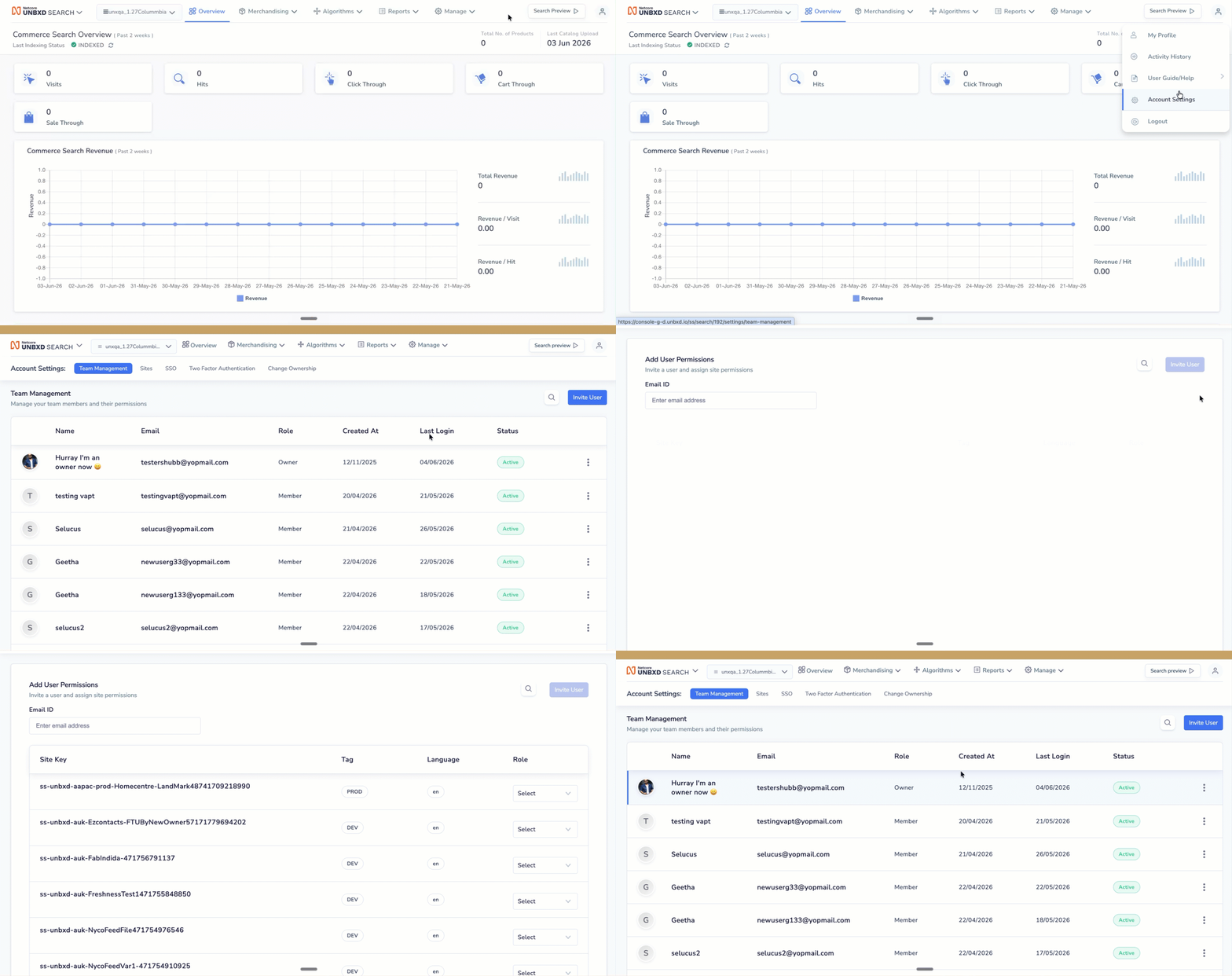
Manage your team members and their permissions
Row actions
| Action | Available for | What it does |
|---|---|---|
| Edit | Active users | Opens the user's site-role mapping so you can change roles, or reset their password / 2FA. |
| Revoke access | Active users | Removes the user's access to assigned sites and account resources based on their role permissions. Existing active sessions may be terminated. Historical activity remains available for auditing purposes. Not available for the Owner. |
| Copy invite link | Pending users | Copy the invitation link so you can share it directly. |
| Revoke invite | Pending users | Cancels the pending invitation. The invite link is invalidated immediately. |
| Resend invite | Pending users | Email the invitation again. |
Invitation Expired
If a user does not accept an invitation within the configured validity period, the invitation expires automatically.
When an invitation expires:
- The invitation link is no longer valid.
- The user cannot access the account.
- Administrators can resend the invitation to generate a new activation link.
- The user remains in Team Management until the invitation is accepted or removed.
Invite a New User
Add a teammate and set their access before they log in.
- Go to Account Settings > Team Management.
- Click Invite User.
- Enter the user's email address.
- Under Site Permissions, assign their role on each site.
- (If account SSO is on) Optionally tick Disable SSO for this user.
- Send the invitation. The user shows as Invite Sent until they accept.
Note:
The invite screen only sets Site Permissions. SSO, 2FA, and password options aren't part of this flow.
Edit User
Open Team Management, find an Active user, and click Edit to adjust their access.
- Change roles: update the user's role on each site, then save.
- Reset password: use Reset Password (subject to the user's 2FA setup).
- Reset 2FA: open the 2FA tab (shown only if the user already has 2FA enabled) and choose Reset / Remove 2FA.
- Make or remove a Super Admin: use the Super Admin toggle.
- If the Owner, Super admin, and Unbxd user can change, but only members cannot change SSO settings.
Editing the Owner: When you edit the Owner, the site-role dropdowns and the Super Admin toggle are disabled. The Owner's access can't be reduced from here.
Sites
A read-only list of every site in your account, for reference. No actions are available on this screen.
Each site shows: Site Key, Site Name, Site ID, Environment / Tag, and Language.
Single Sign-On (SSO)
Set up SSO so your team signs in through your identity provider.
SSO Configuration
- Go to Account Settings → SSO Configuration.
- Turn the SSO toggle ON.
- Complete the SAML configuration block that appears.
- Save the configuration.
- Validate the connection using your identity provider.
SSO Login Flow
- The user enters their registered email address.
- The system identifies the configured identity provider.
- The user is redirected to the organisation's identity provider login page.
- The user authenticates using corporate credentials.
- Upon successful authentication, the user is redirected back to the application.
- Access is granted according to the permissions associated with the user's assigned role.
SSO Access and Permissions
- Only Owner, Super Admin, and Unbxd User can toggle account-level SSO.
- Authentication through SSO does not grant additional permissions.
- Users retain the permissions associated with their assigned role.
- Per-user SSO can only be configured when account-level SSO is enabled.
Two-Factor Authentication (2FA)
Enforce 2FA across your account.
- Go to Account Settings → 2FA Configuration.
- Turn 2FA ON.
What happens
- When enabled: every user must set up 2FA at their next login.
- When disabled: enforcement stops for new users; existing users continue to manage 2FA from their own settings.
Super Admins
A Super Admin has full account access except for creating sites. Super Admins can transfer account ownership. You can have up to 5 per account.
To add or remove one:
- Open Edit for the user.
- Toggle Super Admin on or off.
- Save.
Change Ownership
Transfer ownership of the account to another existing user. Ownership moves at the account level across all sites in all regions, and the previous owner is reassigned a role across the sites. The New Owner dropdown lists every eligible team member except the current owner.
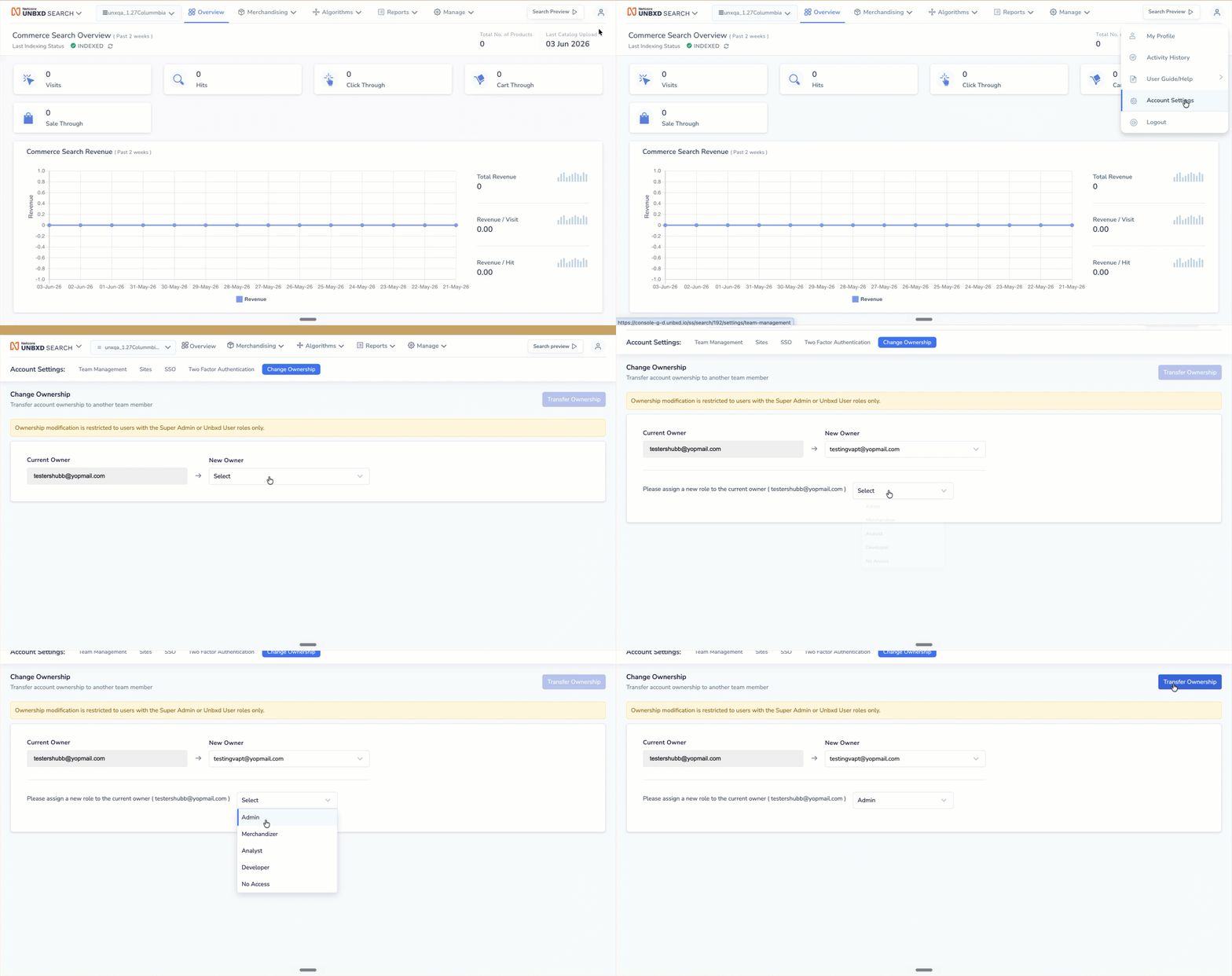
Transfer account ownership to another team member
Who can transfer ownership
- Super Admin only
Who cannot transfer ownership
- Owner — not allowed to change or transfer ownership
- Admin
- Member
High-impact actionChanging ownership affects the entire account across every region. Ensure the new owner has the required account-level access before completing the transfer.
User statuses
| Status | Can you log in? | Available actions |
|---|---|---|
| Active | Yes | Edit, Revoke access |
| Invite Sent | No | Copy invite link, Resend invite |
| Invitation Expired | No | Resend invite |
Updated 5 months ago